
Claude Code for Everything: Your Terminal is Fighting You (Here’s How to Fix It)

The problem with running Claude Code in a regular terminal isn’t Claude - it’s the terminal itself. Output flashes every time a tool call streams in. Your scroll position jumps to the top when you’re trying to read something. You close the session feeling productive but a little motion-sick.
A few weeks ago, I hit this wall hard. I’d be deep in a long session - drafting a document, running a few research tasks, jumping between tool calls - and the screen would flash so often that I’d lose my place. The sessions where real work happens (the long ones) were the exact sessions where Claude Code felt hardest to read.
When you type claude command in the terminal, the line where we are adding the commands will come like this, its not in fullscreen mode.
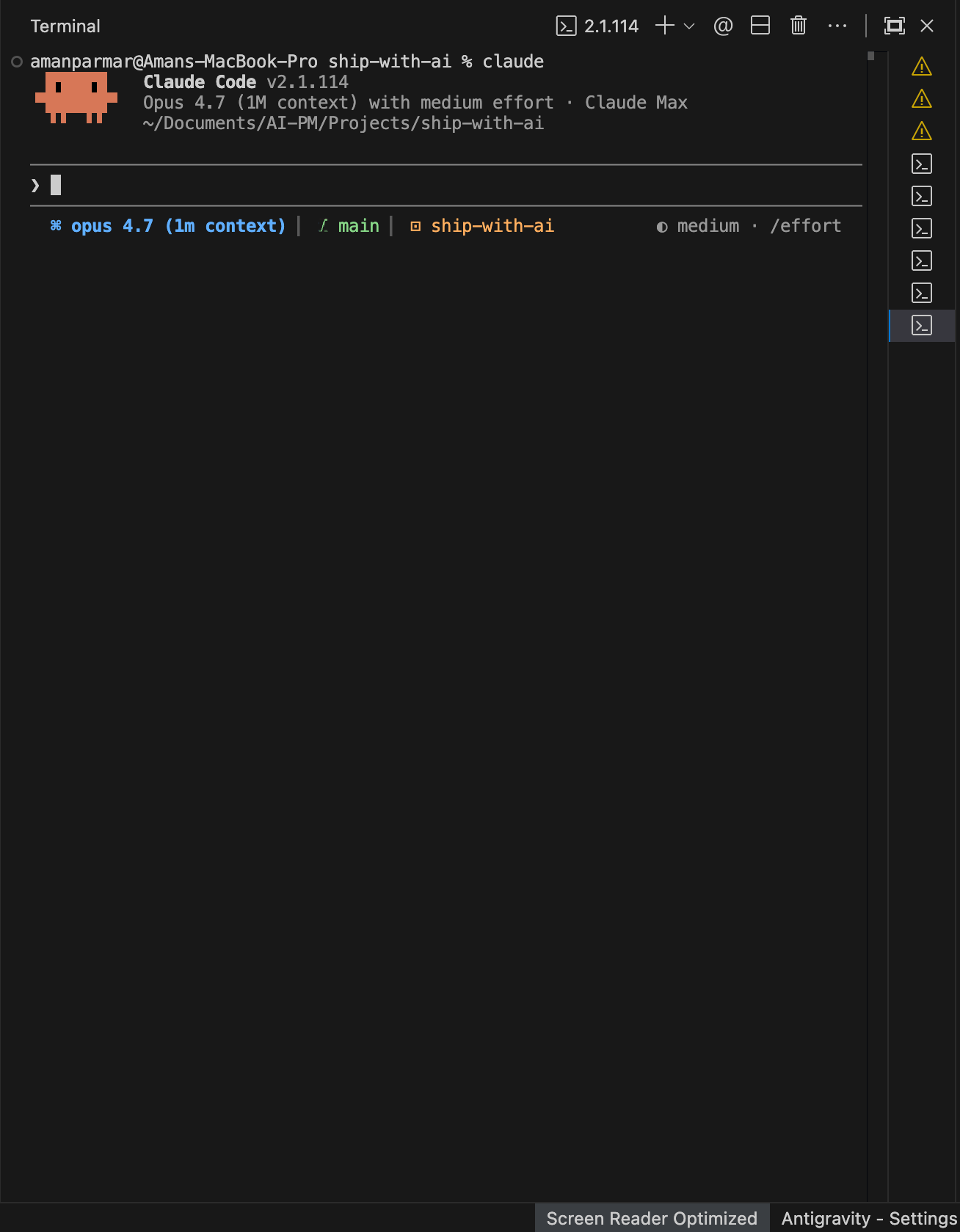
Then I found /tui fullscreen
Claude Code has a second display mode, hidden behind a single command, that turns your terminal from a scrolling log into a dashboard. The input box stays pinned. The flicker disappears. Memory stays flat no matter how long your conversation runs. It took me about 10 seconds to turn on, and I kept wondering why nobody had told me about it sooner.
For knowledge workers - anyone running Claude Code for hours of document work, research, and drafting - this is the single biggest quality-of-life upgrade I’ve found.
Here’s the full map of display modes in Claude Code, what each one gets you, and when to reach for which.
The default mode is a scrolling log
Out of the box, Claude Code prints output into your terminal’s normal scrollback - the same buffer you see when you run any regular shell command. Messages flow downward, your cursor moves with them, and your terminal’s native shortcuts (Cmd+f, Cmd+click, click-and-drag to select) all work the way you’d expect.
For short sessions - quick questions, a single task - it’s fine.
The problem shows up in long sessions. Every time Claude updates a message, the whole conversation redraws. That’s why the screen flashes. It’s also why a two-hour session starts to feel sluggish: your terminal is still holding and redrawing every single message from the beginning of the chat.
To check which mode you’re currently on:
/tuiWhat this gets you: zero risk. Nothing changes. Use it to find out if you’re already running the smooth mode before you touch any settings.
Fullscreen mode is a dashboard
Fullscreen mode is what happens when Claude Code takes over your terminal the way vim does. It draws onto a separate screen buffer and only renders the messages that are actually visible. The log becomes a dashboard: fixed controls at the bottom, fresh content up top, no redraw storms.
To turn the dashboard on inside an active session:
/tui fullscreenClaude Code saves the setting, relaunches, and drops you back into your conversation. Nothing is lost.
What this gets you:
Click anywhere in your prompt to position the cursor. Before: arrow keys one letter at a time to fix a typo at the start of a long message. After: click the word, start typing.
Click a URL to open it. Before: Cmd+click (and some terminals wouldn’t even let you). After: single click, browser opens.
Click a file path to open it in its default app. Before: copy, paste into Finder, open. After: click.
Click a collapsed tool result to expand it. Before: the result was just... collapsed. After: one click expands the whole thing.
Scroll with your touchpad or mouse wheel. Before: PgUp/PgDn only. After: natural scrolling, the way any app works.
The input box stays pinned at the bottom. Before: the prompt moved as output streamed in. After: it stays put, even mid-tool-call.
Keyboard scroll still works alongside the mouse. On a MacBook without dedicated PgUp/PgDn keys, use Fn+↑ and Fn+↓. Ctrl+End jumps to the latest message. Ctrl+Home jumps to the start.
Here is the recording, how it looks like,
To start the dashboard at launch instead of mid-session:
CLAUDE_CODE_NO_FLICKER=1 claudeWhat this gets you: the same clickable, flicker-free dashboard, but applied before Claude Code starts up. The setting disappears when you close the terminal, so it’s a safe first try - you can commit later.
If you want the dashboard forever, add this line to your ~/.zshrc (or ~/.bashrc if you’re on bash):
export CLAUDE_CODE_NO_FLICKER=1Save, run source ~/.zshrc, and every claude launch from now on opens in the dashboard.
What this gets you: you never type the env var again. Open any new terminal tab, type claude, and you’re already in.
To switch back at any point, run /tui default.
One thing the dashboard changes: your terminal’s native Cmd+f stops finding the conversation, because the text now lives on a separate drawing surface. The fix lives in the next section.
The SSH / tmux setup (dashboard without the mouse)
If you work over SSH or you live in tmux, the mouse-capture part of the dashboard gets in your way. Your local terminal’s selection (and tmux copy mode) stop seeing the conversation, because the selection is happening on the remote side.
The fix: turn mouse off, keep the dashboard on.
CLAUDE_CODE_NO_FLICKER=1 CLAUDE_CODE_DISABLE_MOUSE=1 claudeWhat this gets you:
Your terminal’s native click-and-drag selection works again. Important over SSH, where the remote Claude Code can’t send your selection back to your local clipboard.
tmux copy mode sees the conversation again. All your normal tmux shortcuts work to grab text.
No more flicker, still flat memory. The two biggest dashboard wins stay on.
What you give up: click-to-expand tool output, click-to-open URLs, and mouse wheel scrolling inside Claude Code. Keyboard scroll (PgUp / PgDn / Fn+↑ / Fn+↓) still works.
One compatibility note: the dashboard is not compatible with iTerm2’s tmux -CC integration mode. If you use that specific setup, stick to default rendering in those sessions. Regular tmux inside iTerm2 (without -CC) works fine.
Transcript mode (searching the dashboard)
Once the dashboard is on, your terminal’s Cmd+f won’t find conversation text. Transcript mode is how you get search back.
Inside fullscreen, press Ctrl+o to toggle it. It’s a less-style reader over your conversation.
Keys worth knowing:
/- start a search. Gets you Cmd+f equivalent inside the dashboard.n/N- next or previous matchg/G- jump to top or bottomCtrl+u/Ctrl+d- half page up or downv- open the conversation in your editor ($EDITORor$VISUAL). Gets you a full editable copy to save, diff, or paste into a doc.[- dump the whole conversation into your regular terminal scrollbackqorEsc- back to the prompt
The [ key is the one worth remembering. Press it inside transcript mode and Claude Code writes the entire conversation, with all tool output expanded, into your regular terminal scrollback.
What this gets you: Cmd+f works again. So does tmux copy mode. So does any browser-style text search your terminal supports. The dashboard hands the conversation back to your terminal as normal, searchable text that you can grab, highlight, or export.
Focus mode (when you want less, not more)
If you’re reviewing a long conversation and you don’t need to see every single tool call:
/focusThe dashboard shrinks to three things: your last prompt, a one-line summary of each tool call with diffstats, and the final response. The setting persists across sessions. Run /focus again to turn it off.
What this gets you: a clean summary of what Claude did, without scrolling through 40 file reads, 12 grep calls, and every intermediate thinking block. Useful at the end of a long task when you just want the outcome. Also great when you’re sharing your screen and don’t want coworkers watching every tool call fire.
Scroll speed tuning (if the wheel feels slow)
In the VS Code integrated terminal (and a few others), mouse wheel scrolling on the dashboard feels painfully slow - one event per wheel notch with no multiplier. There’s an env var for that:
export CLAUDE_CODE_SCROLL_SPEED=3What this gets you: one spin of the wheel moves the dashboard three lines instead of one. Scrolling through a long conversation stops feeling like dragging honey. A value of 3 matches vim‘s default feel. It accepts values from 1 to 20. Terminals like Ghostty and iTerm2 (with fast scrolling turned on) already amplify wheel events, so you probably don’t need this there.
The setup I’d recommend
Pick the one that matches your situation:
Local terminal, long daily sessions:
export CLAUDE_CODE_NO_FLICKER=1SSH or tmux-heavy workflow:
export CLAUDE_CODE_NO_FLICKER=1
export CLAUDE_CODE_DISABLE_MOUSE=1
VS Code integrated terminal:
export CLAUDE_CODE_NO_FLICKER=1
export CLAUDE_CODE_SCROLL_SPEED=3
Just want to try it: don’t edit any files. Open Claude Code and type /tui fullscreen. You can switch back with /tui default in seconds.
Most Claude Code upgrades are workflow changes - new commands to learn, new habits to build. The dashboard isn’t that. It’s a configuration choice you make once and then forget about, because it blends back into the background of every session after.
Flip it on once. You won’t go back.